

- For Unstructured Pipelines users, see Unstructured Pipelines settings for structured extraction with LLM
- For Unstructured API users, see Unstructured API Settings for structured extraction with LLM
Unstructured Pipelines settings for structured extraction with LLM
The following sections describe how to use the Unstructured Pipelines to specify settings for structured extraction with LLM.Define your schema (Pipelines only)
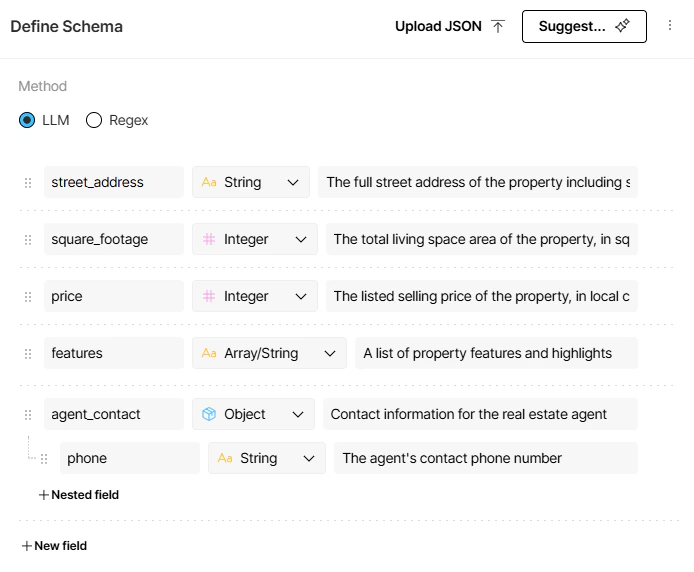
In Unstructured Pipelines, you can build your extraction schema directly in the visual schema builder, or generate a starting point from a plain-language prompt. Once generated, you can refine the schema in the builder and export it as JSON. Be aware that generating a new schema from the plain-language prompt will overwrite any existing builder content.Visual schema builder and JSON upload/export (Pipelines only)
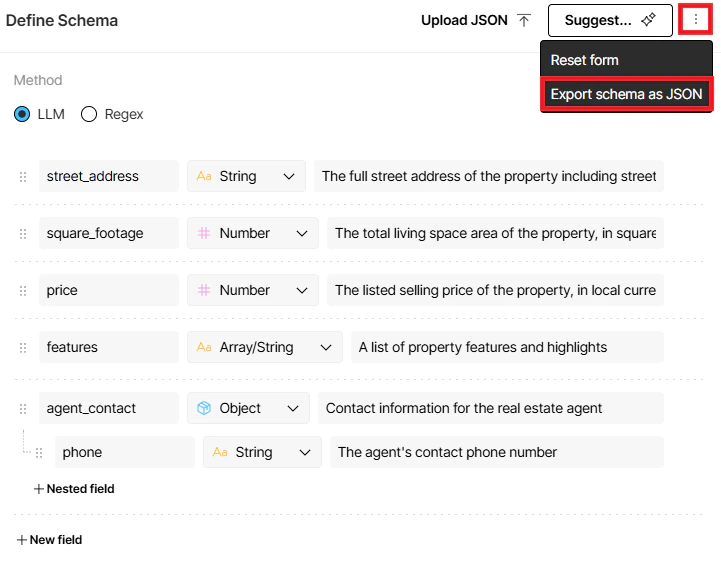
In Unstructured Pipelines, on the Start page or in the workflow designer, you can access the visual schema builder in the Define Schema view. From there you can:- Upload a JSON file to the editor.
- Edit the fields in the schema directly in the editor.
- Export the schema you have defined to a JSON file for reuse.
The schema must conform to the OpenAI Structured Outputs guidelines, which are a subset of the JSON Schema language. Per OpenAI’s guidelines, the maximum supported JSON schema nesting depth is 10 levels.
Plain language in a schema prompt (Pipelines only)
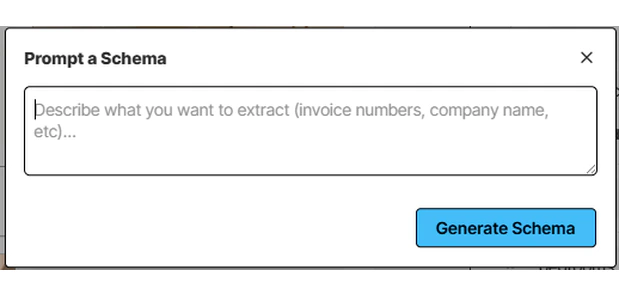
Unstructured Pipelines allows you to specify your extraction schema with a schema prompt instead of by using a visual schema designer or a JSON schema. A schema prompt is plain-language instructions that describe what to extract from your documents, similar to a prompt you would give a chatbot or AI agent. Unstructured generates an extraction schema from those instructions: a structured definition (fields, types, and constraints) that guides extraction from the source documents.This option is only available from the Start page.
Select your LLM provider and model (Pipelines only)
In Unstructured Pipelines, you can select a provider and model for the LLM extraction method. For Model, select your provider and model from the drop-down.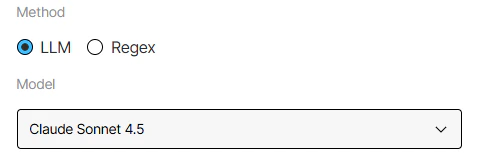
This option is only available from the workflow designer.
Configure your output (Pipelines only)
In Unstructured Pipelines, once your schema determines which fields to extract and what types they return, settings control what the output looks like. Schema-only output lets you strip away Unstructured’s document elements and return just the extracted fields. Extraction guidance lets you tell the LLM how to format, normalize, or summarize values into the fields your schema defines.Schema-only output (Pipelines only)
In Unstructured Pipelines, the Schema-Only Output setting controls whether Unstructured’s document elements are stripped away and returns just the extracted fields. The Schema-Only Output setting applies to both the LLM and Regex extraction methods. In the workflow designer, select the workflow’s Extract node. Under Output settings, you can set Schema-Only Output to ON or OFF whenever you edit the workflow.- When Schema-Only Output is ON, the Extract node returns only the JSON produced for your explicitly defined fields. In workflow JSON, that is the extracted data only layout from Custom defined output (no surrounding Unstructured element list).
-
When Schema-Only Output is OFF (the default), Unstructured also emits the usual document elements and metadata alongside those extracted values.
In workflow JSON, that is the elements with extracted data layout from the same Custom defined output section (structured fields under
DocumentDataplus the rest of the element list).

This option is only available from the workflow designer.
Extraction guidance (Pipelines only)
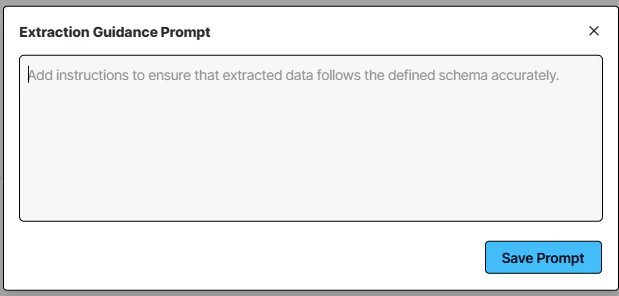
In Unstructured Pipelines, in the workflow designer, use the Extraction Guidance Prompt to tell the LLM how to format, normalize, or present values after your schema defines which fields to extract.This option is only available from the workflow designer.
Unstructured API settings for structured extraction with LLM
The following sections describe how to use the Unstructured API to specify settings for structured extraction with LLM.Define your schema (API only)
An extraction schema is a JSON-formatted schema that defines the structure of the data that Unstructured extracts.The schema must conform to the OpenAI Structured Outputs guidelines, which are a subset of the JSON Schema language. Per OpenAI’s guidelines, the maximum supported JSON schema nesting depth is 10 levels.
schema_to_extract.json_schema key in the settings object
as either as an object in a workflow_nodes array
(for curl) or as a WorkflowNode in a WorkflowNodes collection (for Python). This object or collection applies whenever you
create a workflow,
update a workflow, or
create a workflow job that processes local files.
Specify your LLM provider and model (API only)
You must specify an LLM provider and model for Unstructured to perform the extraction. To do this with the Unstructured API, use the LLM method of an Extract node. In this node, set theprovider and model keys in the settings object
as either as an object in a workflow_nodes array
(for curl) or as a WorkflowNode in a WorkflowNodes collection (for Python). This object or collection applies whenever you
create a workflow,
update a workflow, or
create a workflow job that processes local files.
Configure your output (API only)
Once your schema determines which fields to extract and what types they return, settings control what the output looks like. Schema-only output lets you strip away Unstructured’s document elements and return just the extracted fields. Extraction guidance lets you tell the LLM how to format, normalize, or summarize values into the fields your schema defines.Schema-only output (API only)
You can use theoutput_mode setting with the Unstructured API to control whether
Unstructured’s document elements are stripped away and returns just the extracted fields:
- Set
output_modetoextracted_data_onlyto output only the extracted data as JSON, without any parentDocumentDataelement or any other built-in Unstructured document elements. - Set
output_modetoelements_with_extracted_datato output the extracted data as JSON, inside of a parentDocumentDataelement. This element is also included with any other built-in Unstructured document elements.
output_mode key in the settings object.
You set this object as either as an object in a workflow_nodes array
(for curl) or as a WorkflowNode in a WorkflowNodes collection (for Python). This object or collection applies whenever you
create a workflow,
update a workflow, or
create a workflow job that processes local files.
Extraction guidance (API only)
You can use the Extraction Guidance Prompt setting with the Unstructured API to tell the LLM how to format, normalize, or present values after your schema defines which fields to extract. To specify this setting, use the LLM method of an Extract node. In this node, set theschema_to_extract.extraction_guidance key in the settings object
as either as an object in a workflow_nodes array
(for curl) or as a WorkflowNode in a WorkflowNodes collection (for Python). This object or collection applies whenever you
create a workflow,
update a workflow, or
create a workflow job that processes local files.